Feedback Plugin
The feedback plugin is used in the Feedback stage to send processing results or status information back to the source system.
It manages the creation of headers for feedback messages and sends them. It requires specifying the path within the message where the transaction status is located. Additionally, extra information can be included to enrich the feedback content.
Introduction
Since we have asynchronous processing, we need to explicitly send feedback at the end of the workflow.
To send and process feedback:
- Create a “Prepare Feedback” mapper plugin – It transforms the message into a Feedback message.
- Configure the Feedback sender plugin – This plugin must define a queue to receive the prepared feedback messages.
To add this, use a mapper with:
- Function type:
1Bonding functions - Function:
Add transaction headers
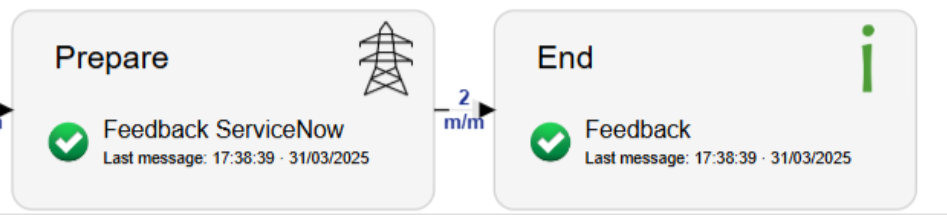
Make sure the feedback message includes a transaction header.
Sender Configuration
| Field | Supported Values | Description |
|---|---|---|
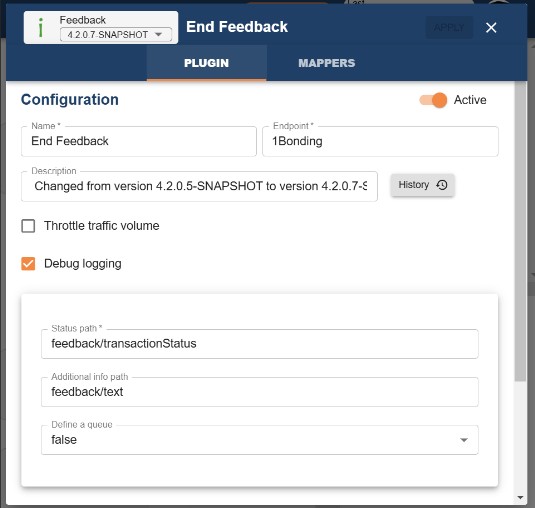
| Status Path | Any string | Path within the message where the transaction status can be found (e.g., feedback/transactionStatus). |
| Additional Info Path | Any string | Path for adding extra information to the feedback headers. |
| Define a Queue | true | Must be set to true so that feedback messages of type PreparedFeedback can be received. |
| Topics | Any string | RabbitMQ queue topics that the sender subscribes to. For 1Bonding instances, use *.subscriberId.*. |
| Queue Name | Any string | Name of the queue for receiving normalized feedback incidents. |
| Throttle Traffic When Queue Fills Up | true / false | Limits message traffic when the queue reaches capacity to prevent overload. |
| Durable | true / false | Ensures messages or queues persist after a system restart. |
| Prefetch | Any int | Number of messages a consumer can receive before processing. |
| Threads | Any int | Number of parallel processing threads for handling messages. |
Steps to Send Feedback
Message Requirements
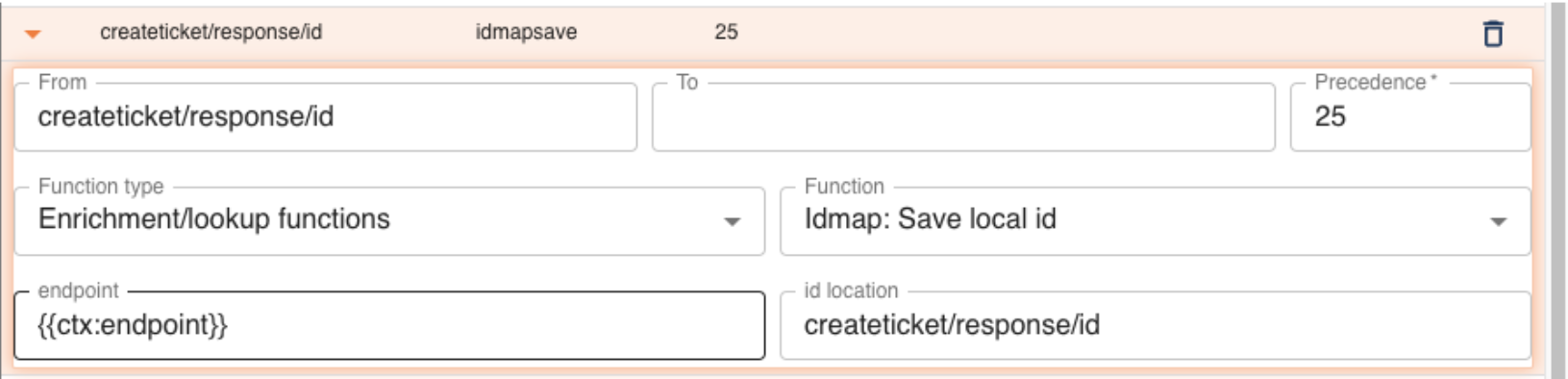
To send feedback about a specific record, we need the 1Gateway internal ID. For that, the application record ID must be recorded in our IDMAP.
- If a new record is added, save the application record ID using the
Idmap: Save local idmapping. - If a ticket is updated, use the
Idmap: lookup local id.
These mappings will generate the 1Gateway internal ID.
For proper feedback processing in the following use case, the endpointName must be provided either in the idmaplookup mapper or idmapsave.
Prepare Feedback Message
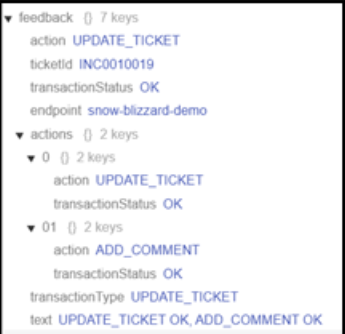
Configure a message mapper plugin that transforms the output of the insert or update into a feedback message to be sent to the origin.
The feedback message includes:
- action
- ticketId
- endpoint
- transactionType
- text
- list of actions that were done to the ticket
- status of each action (successful or failed)
Configure the Feedback Sender Plugin
After the feedback mapper, configure the sender plugin:
- This plugin finalizes the feedback transmission
- Sends to the defined origin
- Requires the config fields listed above in Sender Configuration
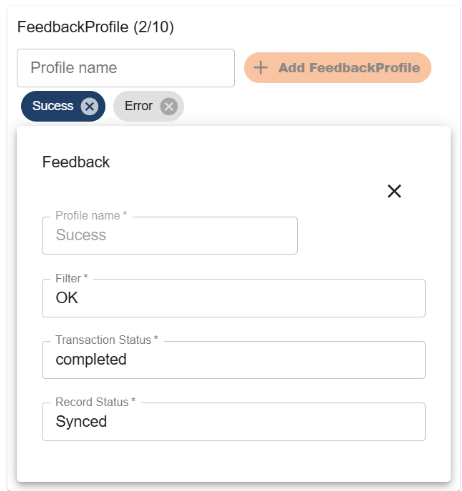
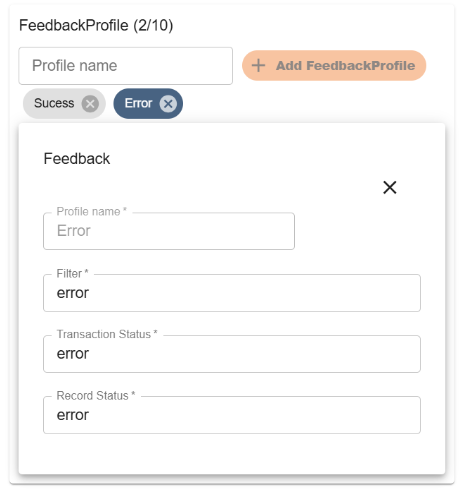
Feedback Profiles
| Field | Supported Values | Description |
|---|---|---|
| Filter | Any string | Specify the string used to compare the transaction status and determine whether this profile should be applied. For example: OK. |
| Transaction Status | Any string | Define the status that will be assigned to the transaction if this profile is applied. |
| Record Status | Any string | Define the status that will be assigned to the record if this profile is applied. |