Syslog Server (Listener)
The Syslog Server Listener plugin enables 1Gateway to receive and process syslog messages from external systems over UDP or TCP. It listens on a configurable port, 514 by default, captures incoming messages, and makes them available for monitoring, logging, or further processing within 1Gateway.
Syslog messages are typically received over UDP (default syslog transport). Ensure the host and Docker Compose configuration expose the correct UDP port.
Configuration
| Field | Options | Description |
|---|---|---|
| Port | Valid port number | Syslog listen port |
| Protocol | UDP / TCP | Protocol used |
Requirements
System Requirements
- A host UDP or TCP port mapped to the container’s syslog port (
514/udp). - Firewall and OS network rules allowing UDP traffic to the mapped port.
1Gateway Requirements
To enable syslog, you need to open the appropriate port in your Docker Compose file. If you need to use the UDP protocol, ensure you specify the protocol as UDP (by using /udp) in the 1Gateway service, as Docker Compose opens ports with the TCP protocol by default.
Expose the Syslog UDP Port in Docker Compose
In your docker-compose.yaml, add a TCP or UDP port mapping for the 1Gateway service.
Example using TCP:
services:
  1gateway:
    image: ...
    ports:
      - "5514:514"   # Example: host 5514 → container 514 (TCP)
Example using UDP:
services:
  1gateway:
    image: ...
    ports:
      - "5514:514/udp"   # Example: host 5514 → container 514 (UDP)
- Container port
514is the standard syslog listener. - Host port
5514is an example; adjust as needed for your environment.
How to Test
1. Verify Host Port Is Listening
Linux
ss -tuln | grep 5514
You should see an entry like:
udp UNCONN 0 0 0.0.0.0:5514 0.0.0.0:*
Windows (PowerShell)
Get-NetUDPEndpoint | Where-Object { $_.LocalPort -eq 5514 }
The output should show the port 5514 in LocalPort.
2. Verify Container Port Is Accessible
Exec into your 1Gateway container and observe traffic on port 514:
docker exec -it <1gateway_container> bash
tcpdump -i any udp port 514
Traffic output confirms the container is reachable on syslog port 514.
3. Send a Test Syslog UDP Message
From the host machine or any system that can reach the mapped port:
On Windows (PowerShell)
[System.Net.Sockets.UdpClient]::new().Send(
    ($b=[Text.Encoding]::ASCII.GetBytes("<14>Test message")), $b.Length,
    "127.0.0.1", 5514
)
<14>is the syslog priority tag (facility 1,severity 6). Use any valid syslog priority as needed.
On Linux
echo "<14>Test message" | nc -u -w1 127.0.0.1 5514
4. Confirm Message Reception by 1Gateway
In the Syslog Listener Plugin, check that the message was received correctly:
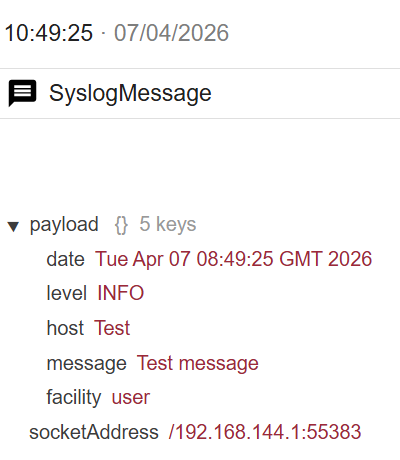
Common Issues & Troubleshooting
| Symptom | Check |
|---|---|
| No message received | Ensure Docker mapping uses /udp (e.g., 5514:514/udp). |
| Host port not listening | Run ss -tuln | grep <host_port>. |
| Docker container not receiving | Validate with tcpdump inside the container. |
| Firewall blocking UDP | Open the host UDP port in OS firewall. |
Summary – Quick Test Checklist
- Docker Compose includes:
HOST_PORT:514/udp. - Host UDP listener verified (
ss). - Container receives UDP syslog (
tcpdump). - Syslog message sent to
HOST_PORT. - Message visible in 1Gateway logs.