Freshdesk
Introduction
The Freshdesk integration in 1Gateway allows you to send tickets, updates, comments, and attachments into Freshdesk (outbound) and receive them from Freshdesk (inbound). Inbound can be set up either with a webhook or with a poller. The integration uses the Freshdesk REST API and includes options for authentication, feedback handling, and timing controls.
Prerequisites
Add Freshdesk user
A user needs to be configured in Freshdesk in order to retrieve and insert tickets into Freshdesk. If both Inbound and Outbound plugins are used, only one user needs to be configured for both plugins.
To create a new user follow the instructions here: https://crmsupport.freshworks.com/support/solutions/articles/50000010207-onboard-users-agents-in-freshdesk-omni
Outbound
Outbound Description
The Freshdesk Outbound plugin creates and updates incidents in Freshdesk. The messages, comments and attachments are sent from 1Gateway into Freshdesk through the REST API.
This outbound plugin is supported from version 4.1.5 of 1Gateway and higher.
Outbound Configuration
Freshdesk uses Basic authentication credentials with:
- User: API key for the 1Gateway user in Freshdesk.
- Password: X
To find the API key for your 1Gateway user in Freshdesk, follow these instructions https://support.freshdesk.com/support/solutions/articles/215517-how-to-find-your-api-key
These are the configuration fields needed to connect to Freshdesk:
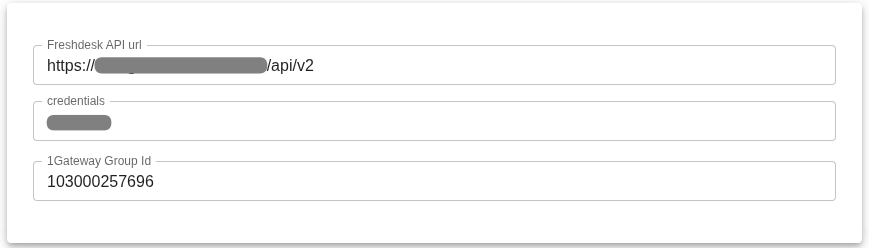
| Field | Supported Values | Description | Example |
|---|---|---|---|
| Freshdesk API URL | Valid URL | Freshdesk server connection | https://YourCompanyName.freshdesk.com/api/v2 |
| Credentials | Any string | Freshdesk credentials reference | freshdesk |
| Freshdesk Group ID | Any string | Default group to assign the ticket in Freshdesk, will be applied if the group ID is not present (optional, will stay empty if not set) | 6000212268 (Technical team) |
In order to find out the group ID, use a rest client (e.g. Postman) and do a GET request with basic authentication to your freshdesk URL with the following: <your-freshdesk-url>/api/v2/groups
These fields define optional behaviors and timing controls for handling messages and feedback:
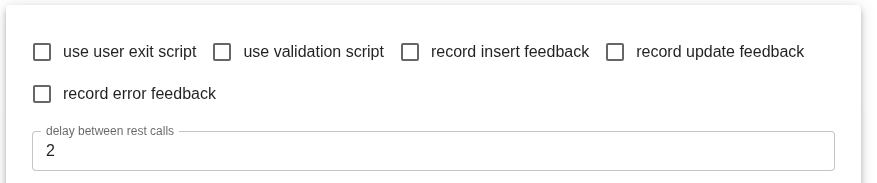
| Field | Supported Values | Description |
|---|---|---|
| Use user exit script | True/False | If true use a custom script that runs after a message has been processed |
| Use validations script | True/False | If true applies custom message validation before processing the message; Defined in Profiles/ValidationScript |
| Record insert feedback | True/False | Add feedback to ticket on insert |
| Record update feedback | True/False | Add feedback to ticket on update |
| Record error feedback | True/False | Add feedback to ticket on error |
| Delay between rest calls | Integer | Delay in seconds between REST calls to the Freshdesk API |
Inbound
Inbound Description
There are two options when configuring the Freshdesk Inbound connection, either through a webhook configured in Freshdesk or by polling for them, you can use one method or the other.
This Inbound plugin is supported from version 4.1.5 of 1Gateway and higher.
Inbound Webhook configuration
If configured, Freshdesk pushes new tickets and updates directly to 1Gateway as they occur. A webhook in Freshdesk needs to be configured according to your company's requirements, for example:
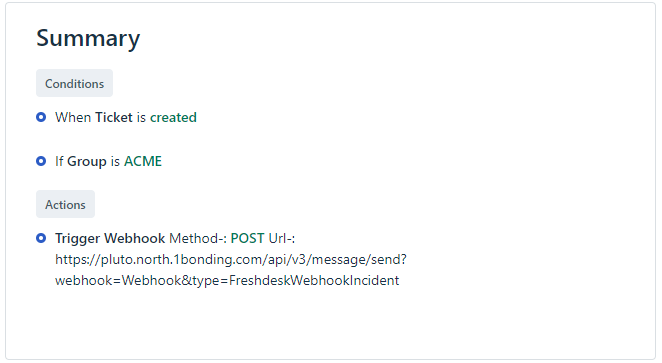
To learn how to setup a webhook in Freshdesk follow the instructions here, https://suretriggers.com/docs/how-to-set-up-webhooks-in-freshdesk/
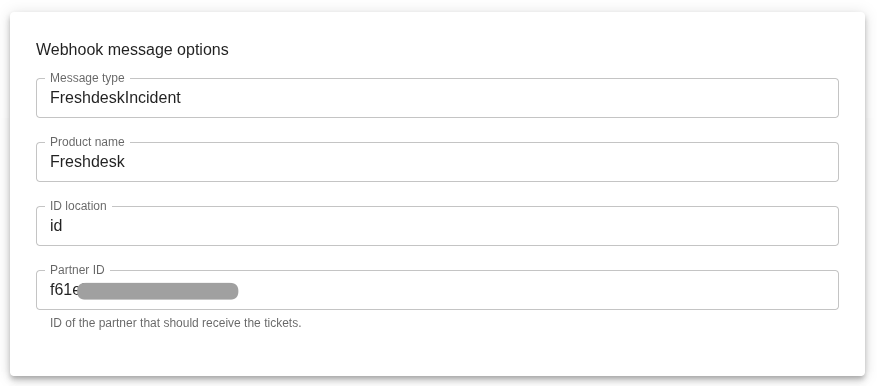
| Field | Supported Values | Description |
|---|---|---|
| Message type | Any string | Type of message retrieved from Freshdesk |
| Product name | Any string | FreshDesk |
| ID location | Any string | Location of Ticket ID in the message |
| Partner ID | True/False | ID of the partner that should recieve the tickets (for 1Bonding use cases) |

| Field | Supported Values | Description |
|---|---|---|
| Use override script | True/False | Run override script for customized integrations |
| Delay between rest calls | Integer | Delay in seconds between REST calls to the Freshdesk API |
Inbound Poller configuration
1Gateway periodically checks Freshdesk for new tickets, updates, comments, and attachments.
To setup a Poller go to the Profiles section of your plugin and click on:

Once you've given it a name complete the following fields:
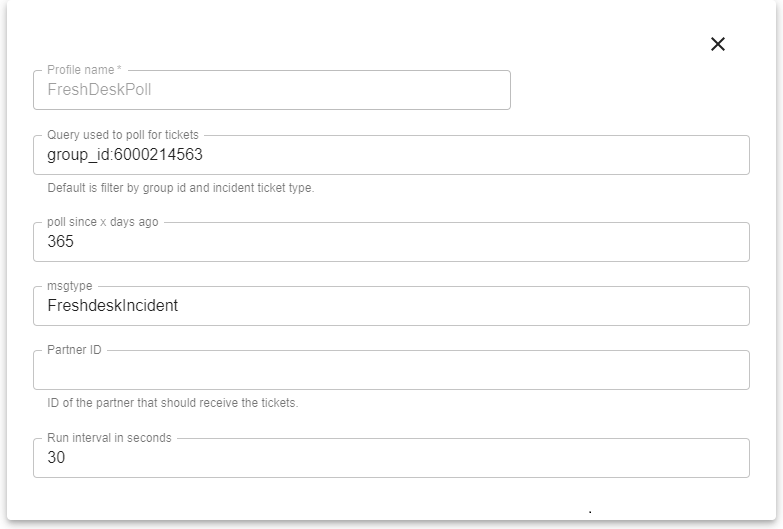
| Field | Supported Values | Description |
|---|---|---|
| Query used to poll for tickets | Freshdesk filter language | Query used for polling, default is filter by group and incident ticket type (group_id:6000212268 AND type:INC) fill in the correct Group ID and ticket type |
| Poll since X days ago | Integer | In the first poll cycle, poll for messages that are newer than value |
| msgtype | Any string | The message type should define the format and context of the data carried in the message, for use in the message flow (e.g. FreshdeskIncident) |
| Partner ID | Integer | ID of the partner that should recieve the tickets (1Bonding only) |
| Run interval in seconds | Integer | Polling interval in seconds, default is 300 seconds |